Search Bar
- Format
- Static
- Category
- Native & UI Mimicry
- Stage
- TOF
- Requires
- Product photo
What is it
An ad that looks like a Google results page, an image grid, an autocomplete dropdown, or a ChatGPT answer, with a question already typed in. When people have a problem, they search. This format mirrors that moment and shows the brand as the top result, so the product comes across as something a neutral machine found rather than a claim the brand is making. People question ads; they rarely question search results.
What makes it work
Type their thought, not your headline
The query should be the unpolished thing someone types alone at 11pm: lowercase, symptom-level, sometimes a little desperate. "why do I wake up tired even after 8 hours" beats "Best Sleep Mask 2024." If it reads like marketing copy, the illusion breaks.
Let the engine deliver the verdict
A brand saying "we're the best" gets discounted immediately. A results page that appears to rank you first doesn't, because the reader assumes Google has no reason to lie. Your product should show up as the answer, not as the question.
Have the engine suggest the brand
In autocomplete, the brand should appear as a suggestion rather than something the user typed. That reads as the algorithm recommending you, which feels more neutral than a brand name someone searched for.
Keep the UI plain
Real results pages are a bit flat and inconsistent. A polished, heavily branded results page loses the neutrality the format depends on. Here, native beats art-directed every time.
Use specific numbers for authority signals
"1,628 reviews" reads like a count pulled from a real system. "10,000+" reads like marketing rounding. Star ratings, media logos, and a highlighted snippet make one result feel like a consensus, as long as they stay believable.
Match the surface to how the audience searches
Web snippets suit informational, high-intent questions. Image grids suit fashion and beauty. Shopping cards suit direct response. A ChatGPT answer only works for people who already ask AI for recommendations.
Reference 1
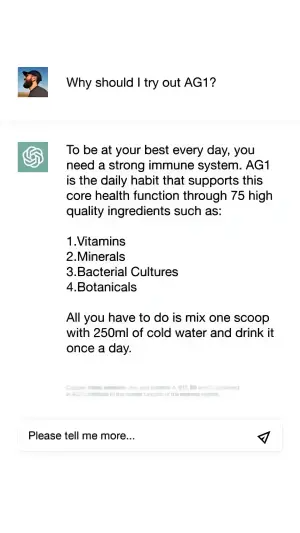
AI Edit Master Prompt
Using the attached image as the layout reference: keep the plain white ChatGPT-style interface, a small user profile photo beside a one-line question at the top, a thin divider, the green AI logo beside a multi-paragraph answer with a short numbered list in the middle, a faint grey disclaimer line beneath, and a rounded input box at the bottom with placeholder text and a paper airplane icon. Replace the profile photo with {YOUR CUSTOMER AVATAR}. Set the question to "{THE PROMPT}", the answer to "{THE AI RECOMMENDATION}", the list to "{FOUR KEY INGREDIENTS OR BENEFITS}", and the input box to "{THE FOLLOW-UP PROMPT}".Reference 2
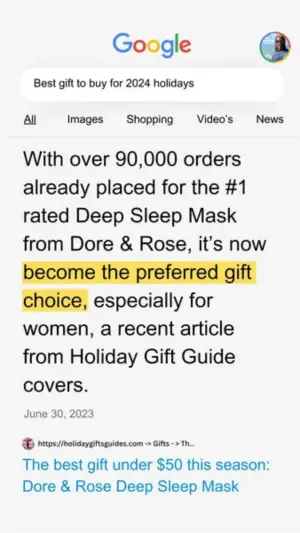
AI Edit Master Prompt
Using the attached image as the layout reference: keep the plain white mobile Google results page with the logo and a profile photo at the top, a rounded search bar, the tab row with "All" underlined, a very large black text snippet filling most of the screen with one phrase highlighted in yellow marker, a small grey date line, and a link preview with a tiny favicon, a grey breadcrumb URL, and a two-line blue link title. Set the search bar to "{THE QUERY}", the snippet to "{THE SOCIAL PROOF CLAIM}", the highlighted phrase to "{THE VERDICT}", the date to "{THE DATE}", and the link title to "{THE ARTICLE HEADLINE NAMING YOUR PRODUCT}".Reference 3
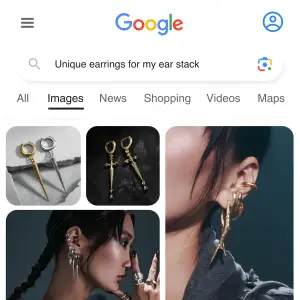
AI Edit Master Prompt
Using the attached image as the layout reference: keep the mobile Google Images page with the menu icon, the Google logo, a profile icon, a rounded search bar with a lens icon, the tab row with "Images" underlined, and a masonry grid below: two small square product close-ups on the left, a tall on-model photo on the right, and a larger moody on-model shot beneath. Replace the photos with {YOUR PRODUCT CLOSE-UPS} and {YOUR PRODUCT WORN}. Set the search bar to "{THE QUERY}".Reference 4
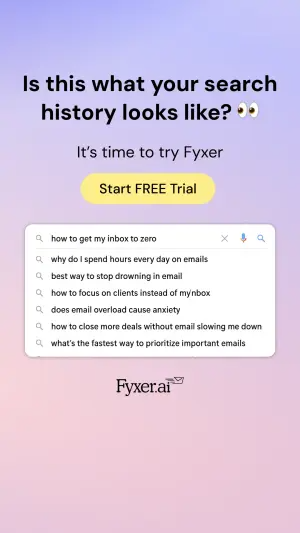
AI Edit Master Prompt
Using the attached image as the layout reference: keep the soft lilac-to-pink gradient background, a bold two-line centred headline ending with an emoji, a smaller line of body text, a yellow rounded button, a white search box with a query typed in and a dropdown of six grey search-history suggestions beneath it, and a small logo at the bottom centre. Replace the logo with {YOUR LOGO}. Set the headline to "{THE RECOGNITION QUESTION}", the body line to "{THE INTRODUCTION}", the button to "{CTA}", the query to "{THE MAIN PROBLEM}", and the suggestions to "{SIX RAW SEARCHES YOUR BUYER WOULD TYPE}".Reference 5
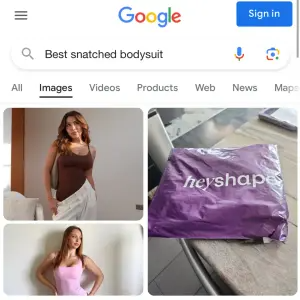
AI Edit Master Prompt
Using the attached image as the layout reference: keep the mobile Google Images page with the menu icon, the Google logo, a blue "Sign in" button, a rounded search bar with a microphone and lens icon, the tab row with "Images" underlined, and a grid of three photos: two stacked on-model shots on the left and a casual photo of the branded shipping bag on a table on the right. Replace the photos with {YOUR PRODUCT WORN} and {YOUR PACKAGING IN A REAL SETTING}. Set the search bar to "{THE QUERY}".Reference 6
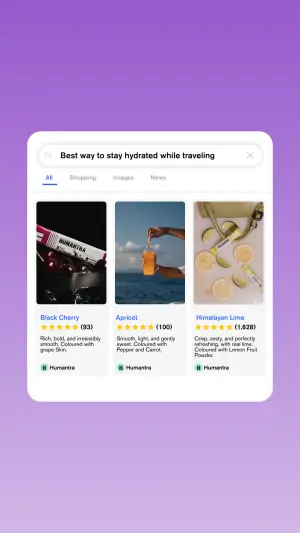
AI Edit Master Prompt
Using the attached image as the layout reference: keep the purple gradient background, a white rounded search card in the centre with a search bar, a tab row with "All" underlined, and three product result cards side by side, each with a product photo, a blue variant name, a row of yellow stars with a review count in brackets, two lines of grey description, and a small brand icon and name at the bottom. Replace the photos with {YOUR THREE PRODUCT VARIANTS} and the brand with {YOUR BRAND}. Set the search bar to "{THE QUERY}", the variant names to "{THREE VARIANT NAMES}", the review counts to "{THREE SPECIFIC REVIEW COUNTS}", and the descriptions to "{THREE SHORT DESCRIPTIONS}".Reference 7
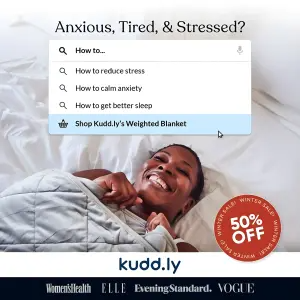
AI Edit Master Prompt
Using the attached image as the layout reference: keep the lifestyle photo of a smiling person lying in bed under a heavy grey blanket, a centred serif headline across the top, a white search dropdown overlaid in the upper half with a short typed query, three grey autocomplete suggestions with search icons, and a fourth suggestion highlighted in light blue with a shopping basket icon and a mouse cursor over it. Keep the round red sale badge in the bottom right, and a black strip at the bottom with the white logo above a row of white media logos. Replace the scene with {YOUR PRODUCT IN USE}, the logo with {YOUR LOGO}, and the media logos with {YOUR PRESS LOGOS}. Set the headline to "{THE PROBLEM QUESTION}", the query to "{THE PARTIAL QUERY}", the suggestions to "{THREE RELATED SEARCHES}", the highlighted suggestion to "{SHOP YOUR PRODUCT}", and the badge to "{THE OFFER}".Reference 8
AI Edit Master Prompt
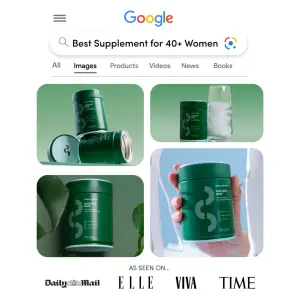
Using the attached image as the layout reference: keep the mobile Google Images page with the menu icon, the Google logo, a rounded search bar with a lens icon, the tab row with "Images" underlined, and a grid of four product photos in green-toned studio and hand-held shots, with an "AS SEEN ON..." line and a row of black media logos along the bottom. Replace the photos with {YOUR PRODUCT} and the media logos with {YOUR PRESS LOGOS}. Set the search bar to "{THE QUERY}".